Support at Home quotes
An Aged Care Purser quote from the person’s own record: their referral from My Aged Care, their budget and contribution rates from Services Australia’s Aged Care Web Services, and your own prices.
Before your first quote
- Government Provider Management System connected, so My Aged Care referrals arrive.
- Aged Care Web Services connected, with your Support at Home service’s NAPS id.
- A Microsoft 365 mailbox connected, to email the quote.
- Your price list, each service with its Support at Home service code and contribution category.
 3:11
Quote from a referral
Open the referral
My Aged Care referrals arrive through the government's provider system, each matched to the care recipient Services Australia holds. On the My Aged Care screen, choose Quote on the referral.
Start a quote
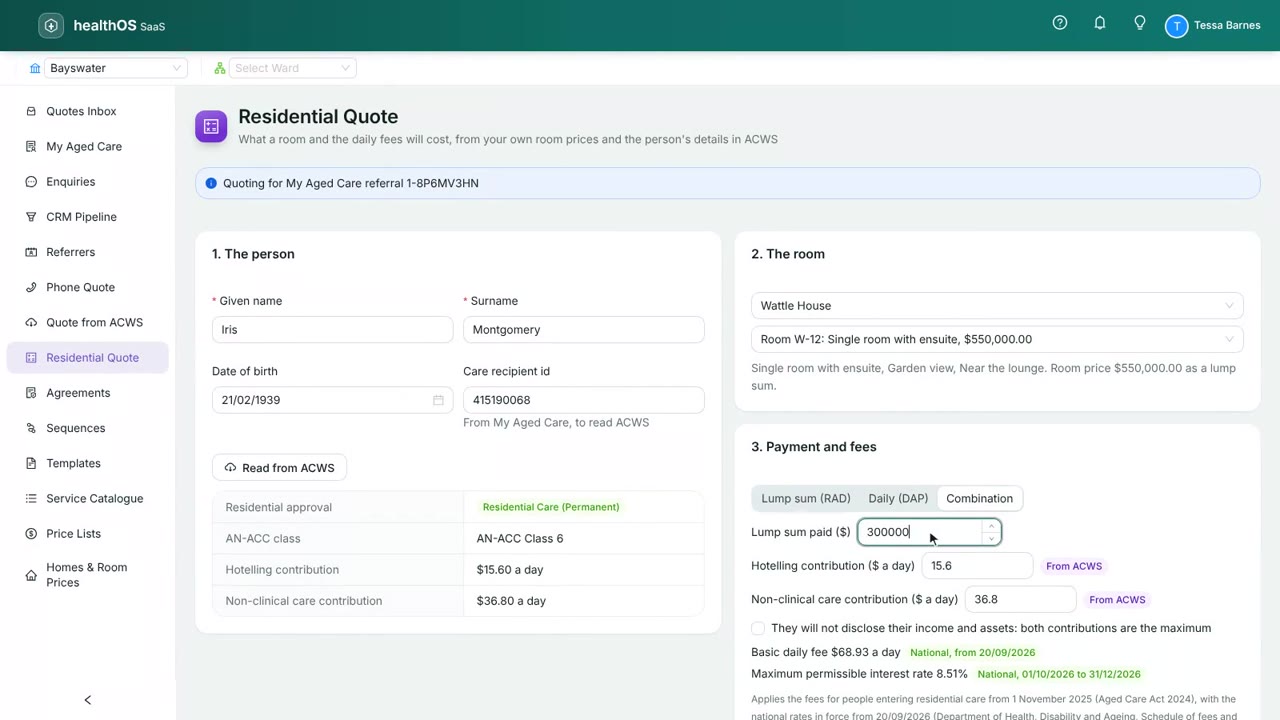
Quote from Aged Care Web Services opens with the care recipient id, surname and date of birth filled in, and reads the record from Services Australia: their classification, their budgets and what is left, their contribution rates and the services they are approved for. Choose Start the quote: the person is added as a client, or brought up to date, and the quote opens.
Adjust it
The quote starts from their approved services, priced from your list. Change how often, add or remove a service. Each line shows its cost a quarter and what the person pays; the totals show what the government pays. Choose Save quote.
Quote from Aged Care Web Services
For someone whose referral is not in your inbox, choose Quote from ACWS and enter their care recipient id, surname and date of birth, then choose Look up in ACWS. Services Australia releases the record only when all three match. Choose Start the quote to open the quote.
Send it
Choose Download Word for a Word document, or Send quote to email it to the family. Aged Care Purser emails only from a connected Microsoft 365 mailbox: the home’s, or your default. Without one, Send quote says so, with a link to the set-up, and records the quote as sent with its document, ready to print or download. If the family says no, choose Declined. See Microsoft 365 mailboxes, then follow the family up from the enquiries pipeline.
Accept the referral
When the family agrees, choose Draft agreement on the quote: the agreement is drafted from it, then sent and signed online. See Agreements.
Then accept the referral on the My Aged Care screen. HealthOS lodges the Support at Home entry event with Services Australia against your NAPS id, which tells My Aged Care the person is with you.
Still stuck? Email support@healthos.net.au