Care minutes and 24/7 registered nurse cover
Care Minutes Periscope works out each home’s care minutes and registered nurse coverage from the hours worked and your residents’ funding classes. This is how to read it, and what to do about a gap.
 5:14
Before you start
- Set up your homes and check each is wired up: see Setting up your homes.
- Connect Aged Care Web Services, so your homes and residents come from Services Australia. Connect Government Provider Management System too if you will lodge from HealthOS.
- Bring in the hours worked: see Getting hours worked in.
- Choose the home in the picker at the top of the screen. Care Minutes shows one home at a time, and says Select a facility until you choose one.
The quarter so far
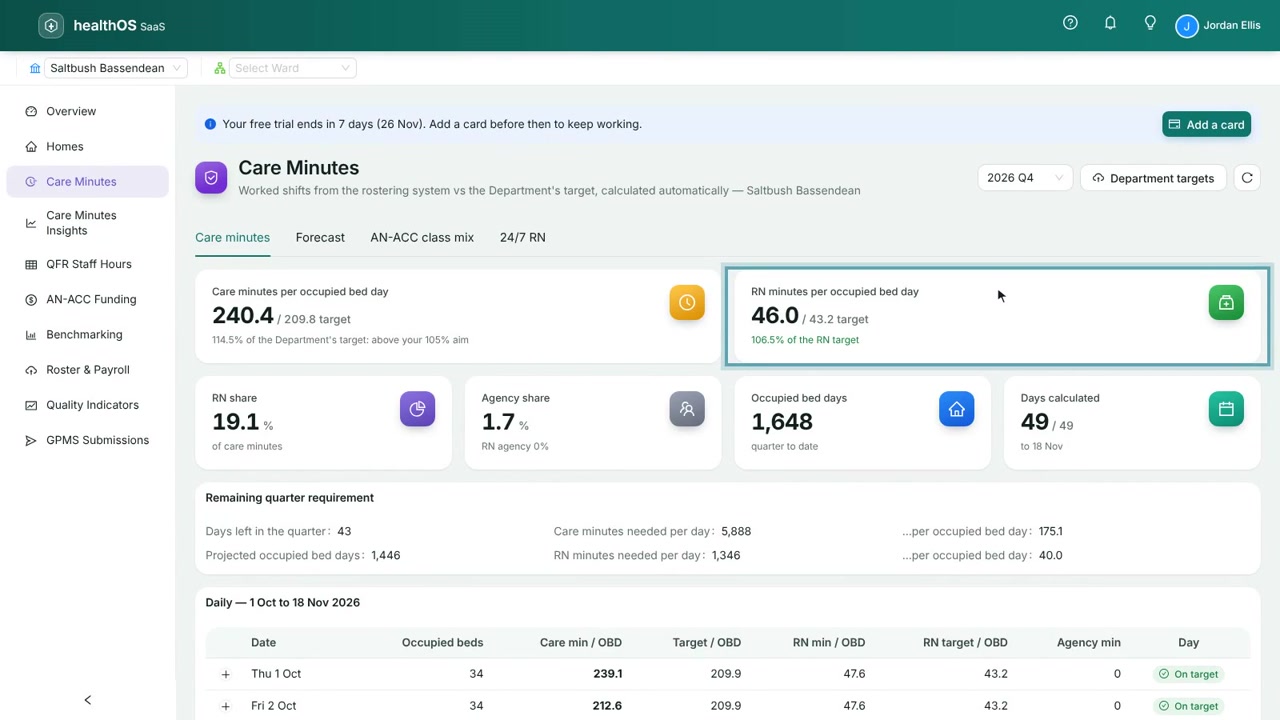
Open Care Minutes and choose the quarter. The figures recalculate by themselves as shifts and funding classes arrive; the refresh button beside the quarter recalculates now.
- Care minutes per occupied bed day, against the target: green at 100% or more, amber from 90%, red below.
- RN minutes per occupied bed day, the RN share and the Agency share (amber above 10%).
- Remaining quarter requirement: the care and registered nurse minutes needed each day for the rest of the quarter to reach the target. For a closed quarter, whether it closed on target and by how much it was short.
- The daily table marks each day On target, Short or RN short. Expand a day to see where its figures came from.
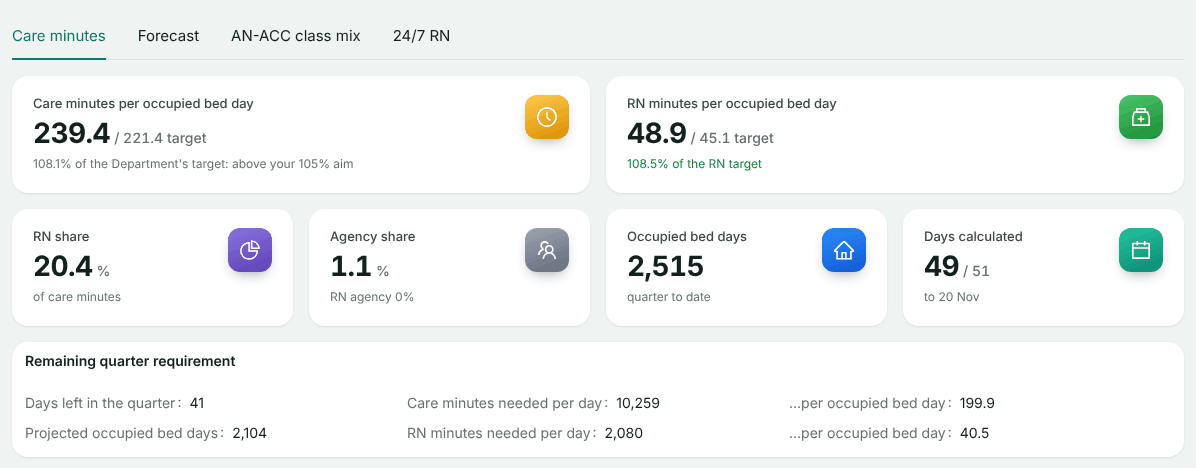
Until you upload the Department’s targets, a banner says the targets are indicative: they weight indicative minutes per class by each resident’s funding class from Aged Care Web Services on each day. The Department publishes each home’s targets as a spreadsheet every quarter; upload it from the Overview (Load your care minutes targets, see Setting up your homes), or with Department targets beside the quarter, and each home is measured against its published target.
The forecast and over-rostering
The Forecast tab sets the rest of the quarter against the roster you have planned. Choose Upload forward roster and pick the published roster from today onwards, exported from your rostering system the same way as worked shifts, for this home or for every home it names. A new upload replaces the planned shifts for the days it covers. A rostering connection set to read the roster ahead fills it by itself, and Read the roster now reads it straight away. Vacant lines are planned as vacant, and lines whose roster code has no care role are listed as not planned until you map them on Roster & Payroll.
- Projected care minutes finish and Projected RN finish: where the quarter lands if the roster is worked as planned.
- Care hours short, RN hours short and Days with an RN gap.
- Care hours a week over your aim. Set Aim for to the share of the target you roster to, as a buffer for sick calls and admissions: 105% unless you change it. Care hours planned above it are over-rostered.
- Week by week: what to add, or what could come off: each week’s planned and needed care and registered nurse hours, the 8-hour shifts it would take to close a gap, and the care hours above your aim that could come off.
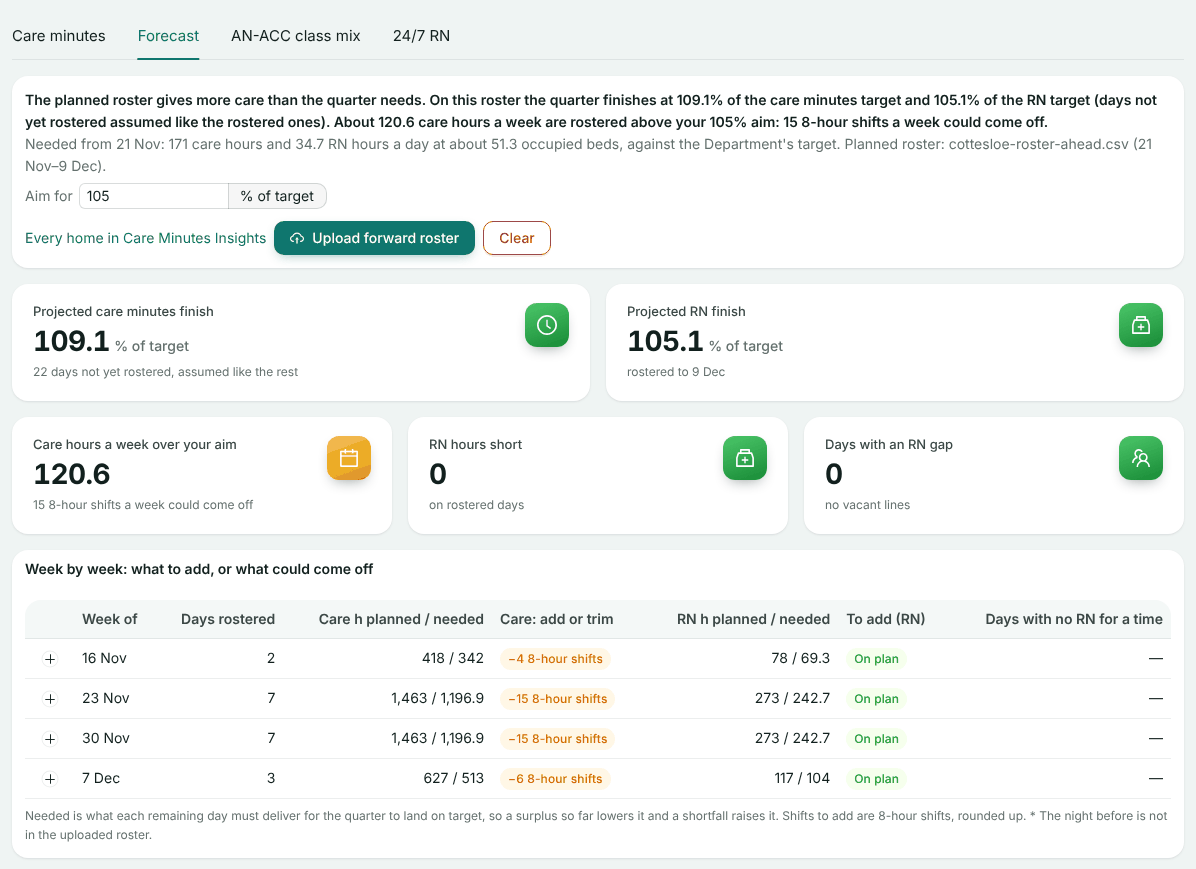
Needed is what each remaining day must deliver for the quarter to land on target, so a surplus so far lowers it and a shortfall raises it. Planned shifts are never worked shifts: nothing on this tab is reported.
Funding class mix
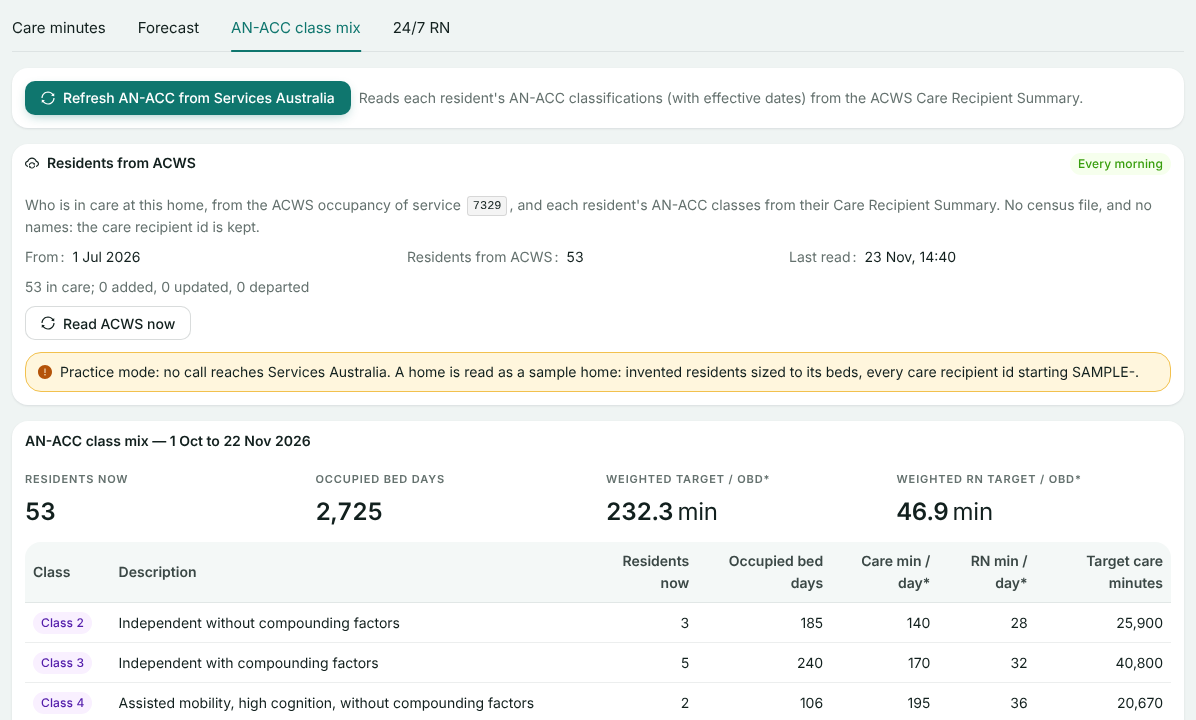
The AN-ACC class mix tab shows how many residents are in each class, their occupied bed days and the target minutes they bring.
Start reading residents
A home with a residential care service id starts reading by itself once Aged Care Web Services is connected. If it has not, in Residents from ACWS choose the date to take residents from (within the last year) and choose Start reading ACWS. From then on it reads every morning. A workspace manager or the care minutes manager starts this.
Refresh classes
Refresh AN-ACC from Services Australia reads every resident’s classes now and lists each change, for example “Class 7 → Class 9 from 3 August”.
Check the payment statement
Choose a Statement month to compare what Services Australia paid for, class by class, with the bed days HealthOS counted. Matches means they agree; otherwise the difference is shown in days.
If the card says This home has no RACS id, add it in Aged Care Web Services set-up first.
24/7 registered nurse gaps and the declaration
The 24/7 RN tab shows, month by month, every day an hour went without a registered nurse on site. Each gap needs an arrangement recorded before the month can be reported.
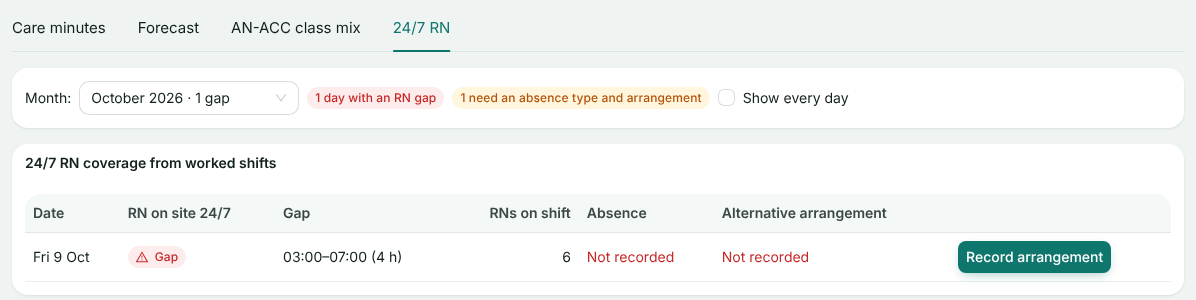
Record each gap
Choose Record arrangement on the gap. Pick the Absence type (planned or not planned) and the Alternative arrangement, such as an enrolled nurse on site with a registered nurse on call, or a virtual registered nurse service. Add who held delegated authority and any notes, then Save arrangement.
Declare the month
When every gap is recorded, tick the declaration that the month’s registered nurse attendance information is complete and accurate, and choose Record declaration. The button stays off until every gap has an arrangement.
Lodge it
Build and lodge the 24/7 registered nurse report on GPMS Submissions.
Quarterly Financial Report staff hours
QFR Staff Hours shows the staff hours section of the Quarterly Financial Report from the shifts already in HealthOS, for one home or all of them. It opens on last quarter.
- Worked hours by staff category, employee and agency, by the care role each roster code is mapped to. A role split across care types is shared across them, the way a payroll system splits a department’s hours: a 4-hour lifestyle shift at 15% personal care and 85% lifestyle counts 0.6 hours as personal care and 3.4 as lifestyle. Hours on codes not yet mapped show as “Not mapped” until you map them on Roster & Payroll.
- By shift: AM, PM or Night by start time, AM from 07:00, PM from 14:30 and Night from 21:00.
- Paid hours not worked, by roster code: lines whose hours type is Not worked, such as leave. They are kept for the Quarterly Financial Report and never counted toward care minutes. Penalty lines are left out, because their hours are already on the shift’s own line.
Export downloads the quarter as a spreadsheet in the Quarterly Financial Report’s staff categories, to copy into the report. HealthOS does not lodge the Quarterly Financial Report.
Care Minutes Insights
Care Minutes Insights shows care minutes across every home at once: how the period you choose has gone (compliance, minutes per resident day and agency share, by month and by home), and the forecast for this quarter from the forward roster, whichever period is chosen. The forecast is built each night, the moment a forward roster is uploaded, and when you choose Refresh; it is never reported. The Quarterly Financial Report staff hours are there too. From the Forecast tab, Every home in Care Minutes Insights opens it.
If something looks wrong
- No care minutes calculated for this quarter yet: bring in the hours worked, or choose the recalculate button.
- A day is short but the staff were there: check the import’s exceptions, an unmapped pay category leaves hours out. See Common exceptions.
- Targets look low or high: refresh funding classes, then check the class mix against the payment statement.
Still stuck? Email support@healthos.net.au