Medicare Online claiming: installation and authentication
Getting access to HealthOS, the values Services Australia issues, and your PRODA B2B device: activation, key refresh and renewal.
About this guide
HealthOS is a hosted web application, so there is nothing to install on your computers. "Installing" HealthOS for Medicare Online, ECLIPSE and DVA claiming means three things:
- HealthOS sets your organisation up on the hosted platform.
- Your organisation registers with Services Australia and PRODA.
- Your administrator connects the two by activating a PRODA B2B device in HealthOS.
Section 4 is a checklist in the order the work is done. Each step says who does it, what they need and how to tell it worked. Sections 5 and 6 explain how staff sign in to HealthOS and how HealthOS proves its identity to Services Australia. Section 7 lists the problems you may meet, with their fixes.
Day-to-day claiming is in the companion HealthOS User Manual — Medicare Online, ECLIPSE and DVA Claiming.
| Software product | HealthOS (Services Australia product name HealthOS_Prod_MCOL_v1.0) |
| Vendor | HealthOS Pty Ltd, ABN 81 697 460 889 |
| Guide version | 2.0 |
To find a subject, press Ctrl+F (Cmd+F on a Mac) and type a word or phrase, or use your PDF reader's bookmarks.
Contents
- About this guide
- 1. Support and contact details
- 2. How HealthOS is delivered
- 3. Requirements
- 4. Setting up your organisation, step by step
- 5. How staff sign in to HealthOS
- 6. How HealthOS proves its identity to Services Australia (PRODA)
- 7. Troubleshooting
- Appendix A. Configuration record
1. Support and contact details
| For | Contact |
|---|---|
| HealthOS support, implementation and onboarding | support@healthos.net.au |
HealthOS support is your one contact for setting up and running claiming. HealthOS holds the connection to Services Australia and deals with their eBusiness Service Centre on your behalf, so you don't need to call them. The only things your organisation does with Services Australia directly are its own registrations: its PRODA organisation and B2B device (section 4.4), and its practitioners' Medicare provider numbers.
When reporting a problem, tell us your organisation, what you were doing, the exact message, and any Transaction ID shown.
2. How HealthOS is delivered
| Delivery | Software as a service: a web application run by HealthOS |
| Hosting | Microsoft Azure, Australia East region. Your data is held in Australia |
| Your address | Your organisation gets a web address for the staff portal. The admin portal is at the same address followed by /admin/ |
| Upgrades | Applied centrally by HealthOS. Everyone is always on the current version, which is the version registered with Services Australia |
| Connection to Services Australia | Made by HealthOS's servers over HTTPS, using your organisation's PRODA B2B device. Your computers never connect to Services Australia |
| Separation | Each organisation's data, PRODA device and claiming settings are kept apart from every other organisation's |
| Scheduled work | For each organisation that is claiming, HealthOS collects Medicare and DVA processing and payment reports every morning, and health fund remittance advices every hour |
3. Requirements
3.1 Computers and browsers
- Microsoft Edge or Google Chrome version 107 or later, Mozilla Firefox 104 or later, or Apple Safari 16 or later.
- JavaScript turned on, and cookies and site storage allowed for your HealthOS address (the browser holds the sign-in session).
- Pop-ups allowed for your HealthOS address, so claim documents (Statement of Claim and Benefit, Lodgement Advice, DB4, OEC report) can open for printing.
- A printer, for the documents patients take or sign.
- A screen of at least 1366 × 768; 1920 × 1080 is better for the claiming screens.
There is no software, plug-in, certificate or card reader to install.
3.2 Network
- Outbound HTTPS (port 443) from your computers to your HealthOS address. Nothing needs to connect in to your site.
- No firewall rule for Services Australia or PRODA is needed, because those connections are made by HealthOS.
- If your network filters web traffic, allow your HealthOS address, and your sign-in provider if you use single sign-on (for Microsoft, login.microsoftonline.com).
3.3 What your organisation needs to obtain
Start these early. The Services Australia registrations can take time.
| You need | From | Why |
|---|---|---|
| A PRODA organisation registration, and its RA number | PRODA (servicesaustralia.gov.au/proda) | Identifies your organisation to Services Australia |
| A PRODA member who can manage B2B devices | Your PRODA organisation | They register the HealthOS device (step 4) and renew it each time it expires |
| Registration of each location for Medicare Online, on Services Australia's form HW027, giving your RA number and the location's Minor ID | HealthOS gives you the Minor ID when your organisation is set up (for example FSX00003), and HealthOS support helps you complete the form | Allows the location to claim. Every Transaction ID starts with the Minor ID |
| Medicare provider numbers for each practitioner at each location | Services Australia (Medicare provider registration) | Servicing, referring and payee providers on claims |
| A DVA Facility ID (hospitals lodging DVA in-hospital claims only) | DVA / Services Australia, registered against your location | Private-DVA in-hospital claims |
| Health fund agreements (hospitals claiming through ECLIPSE) | Each fund | In-patient and in-hospital claims |
You don't need anything that belongs to the HealthOS software itself. HealthOS enters those values when it sets your organisation up (step 2): your location's Minor ID, HealthOS's X-IBM-Client-Id (its key for Services Australia's claiming service, from Services Australia's Health Systems Developer Portal), and the product name (HealthOS_Prod_MCOL_v1.0) and version registered with Services Australia.
4. Setting up your organisation, step by step
4.1 The steps at a glance
| Step | Who | What | See |
|---|---|---|---|
| 1 | Your organisation | Register in PRODA; have your practitioners' provider numbers ready | 3.3 |
| 2 | HealthOS | Set up your organisation, enter the software's own claiming values, create your first administrator, and give you your Minor ID for form HW027 | 4.2 |
| 3 | Your administrator | Create users and roles; set the sign-in and session policy | 4.3 |
| 4 | Your PRODA member | Register the HealthOS B2B device in PRODA and copy the activation code | 4.4 |
| 5 | Your administrator | Complete the PRODA step of the Medicare / ECLIPSE Guided Setup, which activates the device | 4.5 |
| 6 | Your administrator | Load the health fund list; record provider numbers | 4.6 |
| 7 | Your administrator | Confirm everything works with a first patient check | 4.7 |
Do steps 4 and 5 together, in one sitting. The activation code from step 4 expires after one day.
4.2 Step 2 — HealthOS sets up your organisation
HealthOS creates your organisation on the platform: its facilities and structure, the modules you use, the Medicare Online / ECLIPSE and PRODA connectors in your licence, and an account for your nominated administrator. HealthOS also fills in the Guided Setup's Developer Liaison and Developer Portal steps with the values that belong to the software. HealthOS then sends you:
- your staff portal address (the admin portal is that address followed by /admin/);
- the administrator's username and how to set the password (or your single sign-on arrangement);
- your location's Minor ID, for form HW027 (HealthOS support helps you complete it).
4.3 Step 3 — users, roles and sign-in policy
- Sign in to the admin portal as the administrator.
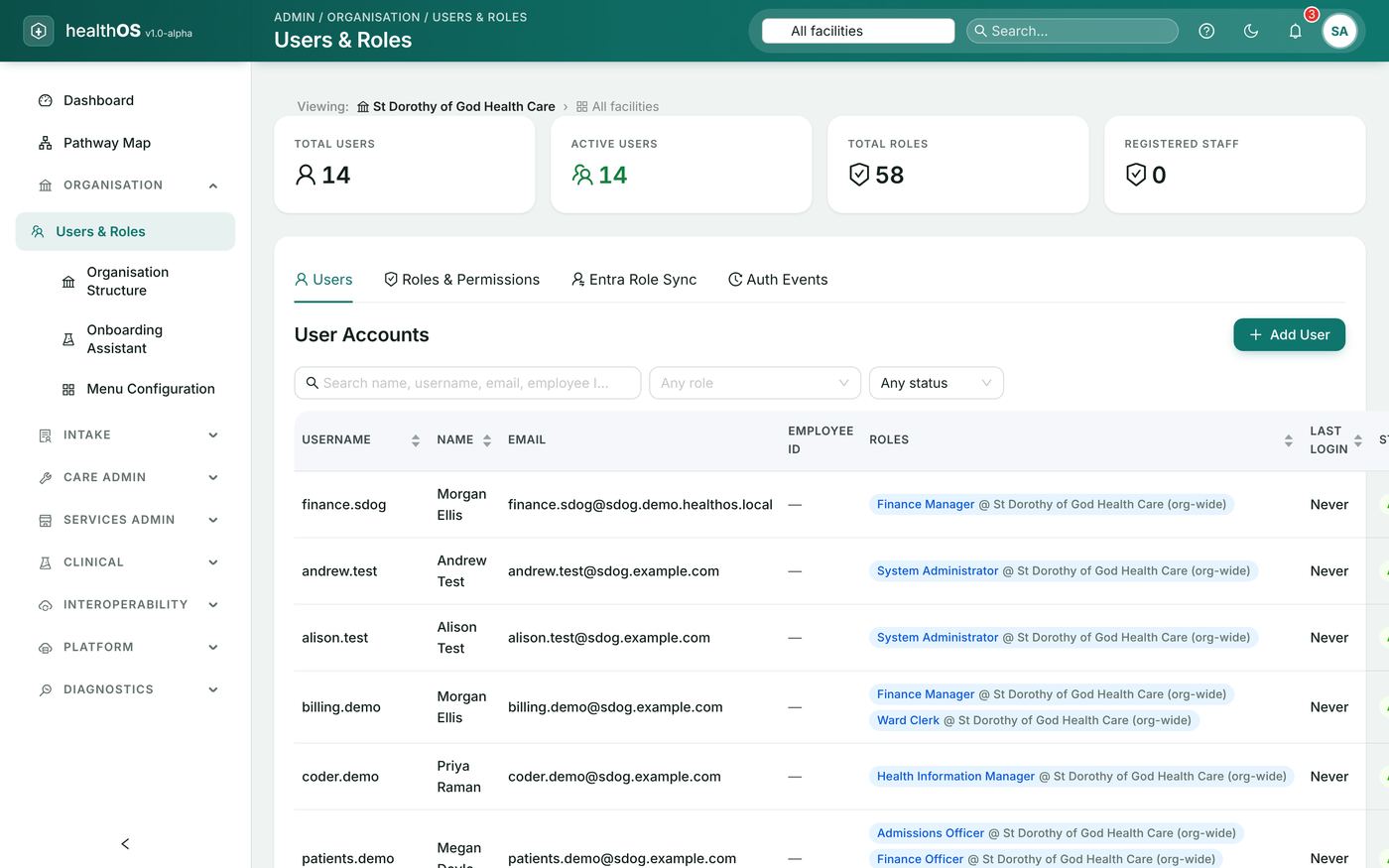
- Open Organisation → Users & Roles. Create an account for each staff member and give them roles. Claiming staff need a role with access to the patient chart and to PAS → Billing & Claims (for example Finance Officer).
- Open Platform → Authentication & Identity. It opens on the Session Policy tab, the one your organisation's administrator uses. Set the session policy described below. (The other tabs are HealthOS's.)
Single sign-on (for example Microsoft Entra ID) is set up by HealthOS. If you want staff to sign in with your organisation's Microsoft accounts, ask HealthOS support when your organisation is set up.
The session policy settings are:
| Setting | What it does |
|---|---|
| Inactivity timeout | Signs an idle session out. 15 minutes by default; up to 120 |
| Enforce MFA for administrators | Administrator accounts must sign in through single sign-on with multi-factor authentication |
| Require MFA for all accounts | The same for every account. Switch it on only once single sign-on is working |
| Account inactivity | Disables accounts not used for 45 days (by default) |
Who does what once claiming is running:
| Task | Who |
|---|---|
| Set up PRODA and Medicare Online / ECLIPSE; keep the health fund list current | An administrator, in the admin portal |
| Check patients, quote, draft, lodge, delete and correct claims, retrieve reports, reconcile | Staff whose role gives access to the patient chart and PAS → Billing & Claims |
| Register and renew the B2B device in PRODA | A PRODA member of your organisation who can manage B2B devices |
4.4 Step 4 — register the HealthOS B2B device in PRODA
Who: your PRODA member who can manage B2B devices. You need: their PRODA sign-in.
- Sign in to PRODA (https://proda.humanservices.gov.au), select Organisations and choose your organisation.
- In the B2B Devices drop-down, choose Register New B2B Device.
- Enter a device name (for example HealthOS-B2B-Device) and a description, and choose Register Device. The name must be unique in your organisation. Write it down exactly as entered.
- PRODA shows the device activation code and when it expires (hover over the expiry to see the exact time). Choose Copy to Clipboard.
The code works once, and in production it expires 1 day after it is issued. Pass it, the device name and your RA number to your administrator for step 5 straight away, by a secure channel. HealthOS never stores or shows the code.
4.5 Step 5 — complete the PRODA step of the Guided Setup
Who: your administrator. You need: the RA number, device name and activation code from step 4. HealthOS has already filled in everything else.
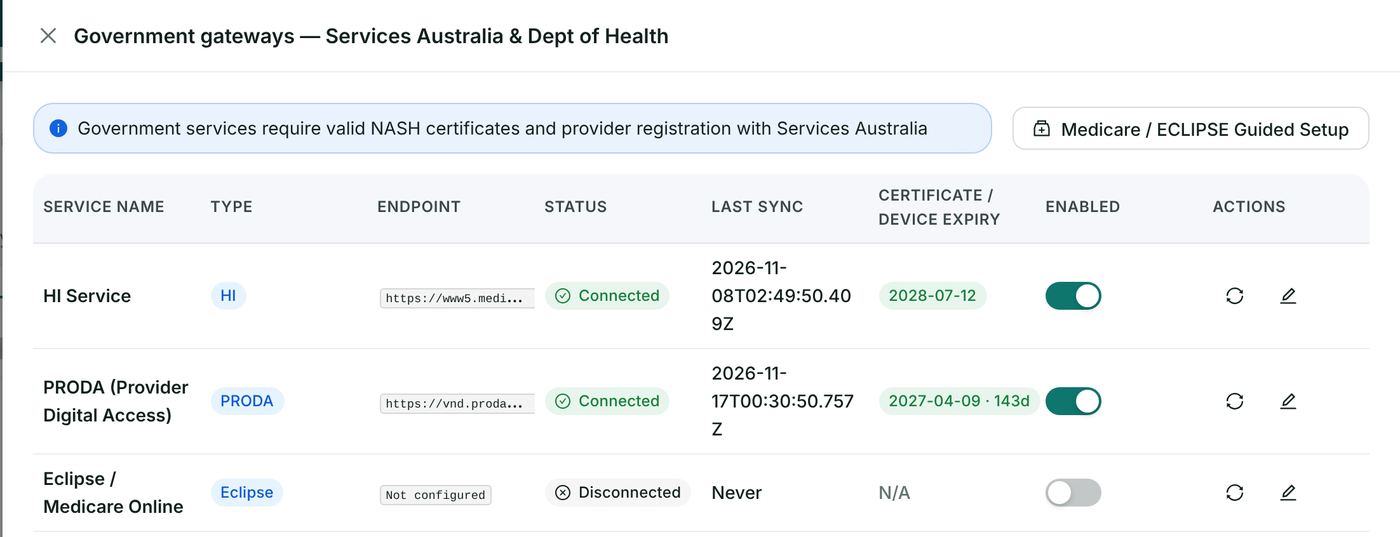
- In the admin portal, open Interoperability → Integration Topology and select the PRODA or Eclipse / Medicare Online endpoint on the map. The Government gateways — Services Australia & Dept of Health panel opens. (Shortcut: your admin address followed by /interoperability/government.)
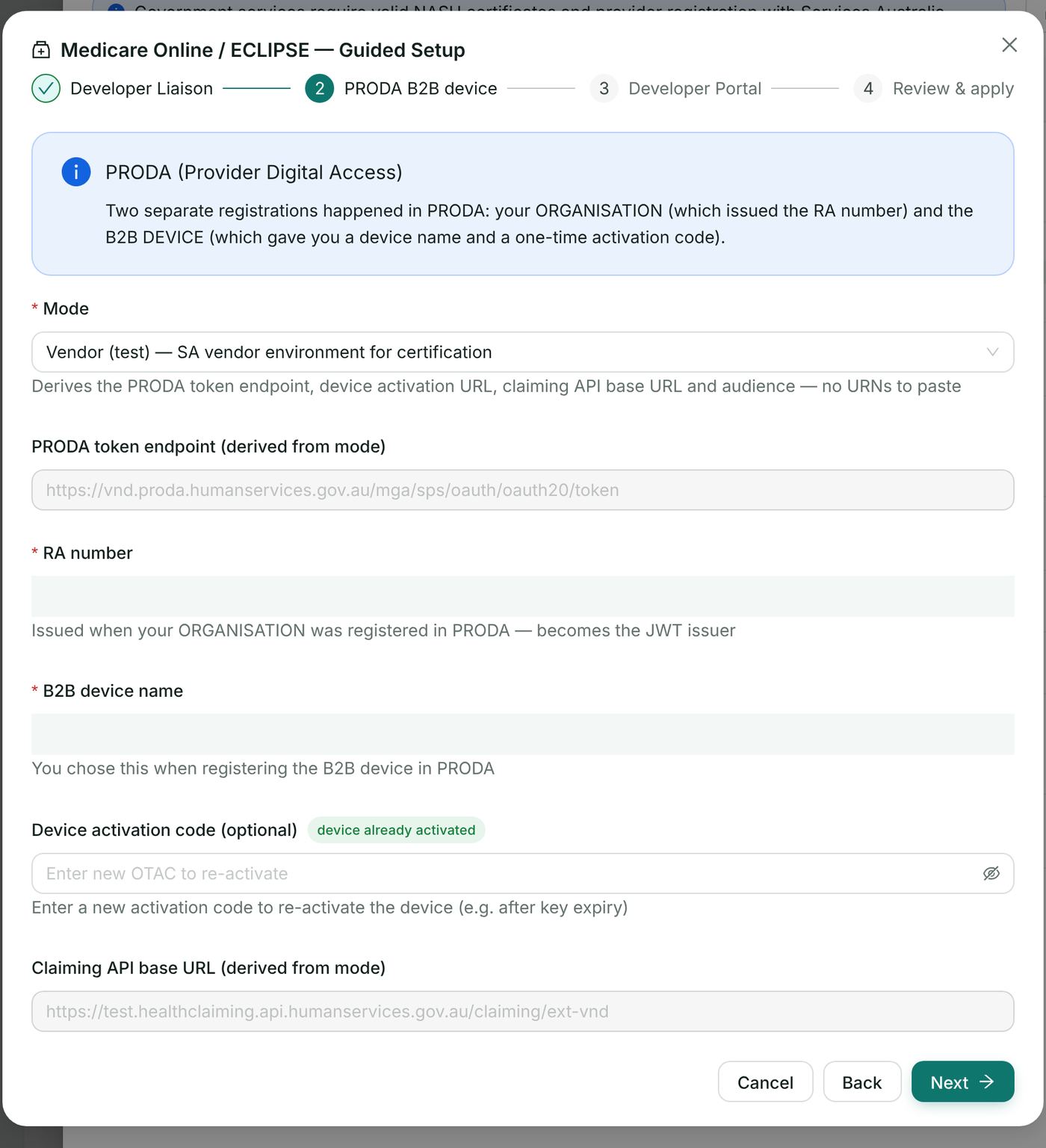
- Choose Medicare / ECLIPSE Guided Setup. It has four steps; HealthOS has filled in the first and third, and works out every address itself.
- Complete the steps, using the table below.
- On Review & apply, check each value and where it came from, then choose Apply.
| Wizard step | Field | Enter |
|---|---|---|
| Developer Liaison | Developer ID | Already filled in by HealthOS with your location's Minor ID, and read-only: only HealthOS can change it |
| Organisation name | Check it is your organisation as registered with Services Australia | |
| PRODA B2B device | Mode | Production. Leave it on Production |
| RA number | Your PRODA organisation's RA number | |
| B2B device name | The device name from step 4, exactly | |
| Device activation code | The code from step 4 | |
| Developer Portal | X-IBM-Client-Id, product name and version | Already filled in by HealthOS. Leave them as they are |
Apply runs four checks and shows a tick or the reason for each:
- Save PRODA configuration
- Save Eclipse configuration
- Activate PRODA B2B device: HealthOS creates the device's key and registers it with PRODA (section 6.1)
- Test connection (PRODA token + ping): HealthOS signs in to PRODA and calls Services Australia
It worked when the wizard shows "Medicare Online / ECLIPSE claiming is configured", and the PRODA row in the Government gateways panel shows Connected with the device's expiry date. If Activate PRODA B2B device shows Activation failed, see section 7.
Leave the mode on Production. It is the only mode for real claims: the other two, Vendor (Services Australia's test environment) and Mock (nothing sent), are for HealthOS's own testing and training. The mode sets every address together (in production, PRODA at proda.humanservices.gov.au and the production claiming service), so a setup can never be half test and half live. If the mode is Mock, or PRODA is switched off, every claiming card in the staff portal shows Vendor mode required.
The same setup switches on everything: Medicare Online, ECLIPSE (in-patient medical, in-hospital, overseas, eligibility checks and remittances) and DVA claiming. HealthOS does not connect to the Australian Immunisation Register (AIR), so there is no AIR setup. Report immunisations through your existing AIR channel.
4.6 Step 6 — health funds and provider numbers
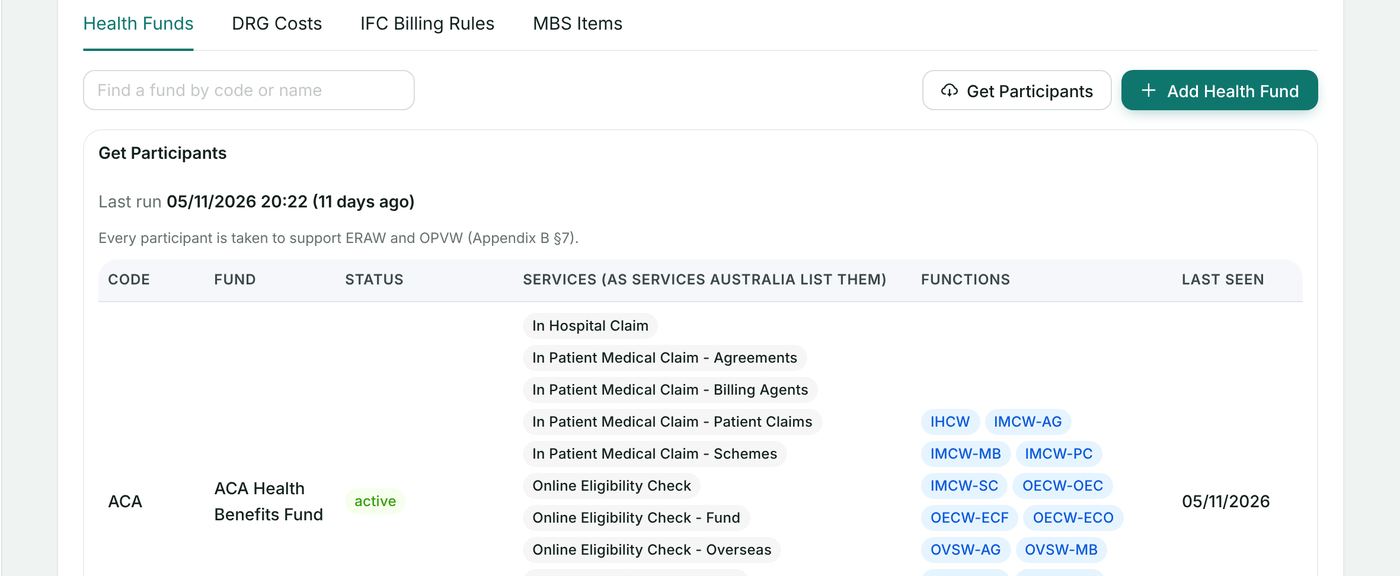
- Health funds: in the admin portal, open Care Admin → Health Funds and choose Get Participants. HealthOS loads the current list of funds from Services Australia ("Get Participants: n funds returned by Services Australia").
- Provider numbers: record each practitioner's Medicare Provider Number on their practitioner record (User Manual section 16.3).
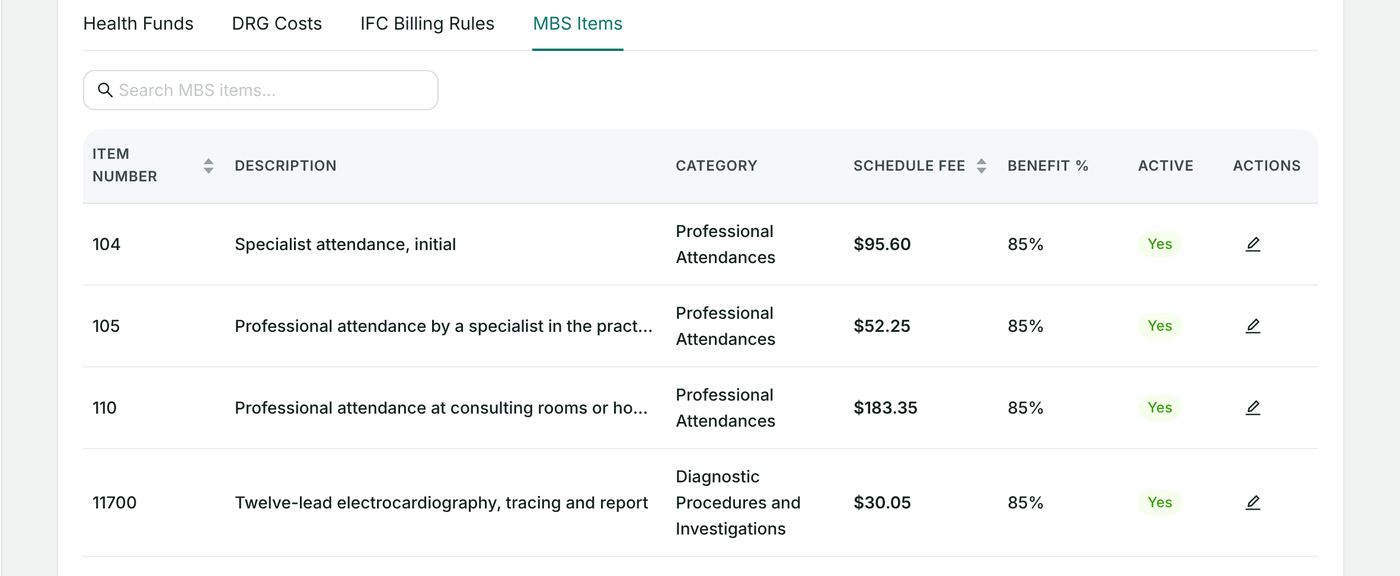
- MBS items: nothing to do. HealthOS keeps the schedule current (User Manual section 16.1).
- DVA hospitals: tell HealthOS support your DVA Facility ID, and we arrange for it to be linked to your location. Without it, DVA in-hospital claims are refused with code 7013.
4.7 Step 7 — confirm it works
- In the admin portal, open the PRODA row's settings (its edit action) and choose Test Authentication. It should report Authentication Test Passed.
- Open the Eclipse / Medicare Online row's settings and choose Test Connection. It should succeed.
- In the staff portal, open a patient's chart → Intake → System: Intake — Coverage & Eligibility and check their Medicare card (User Manual section 5.1).
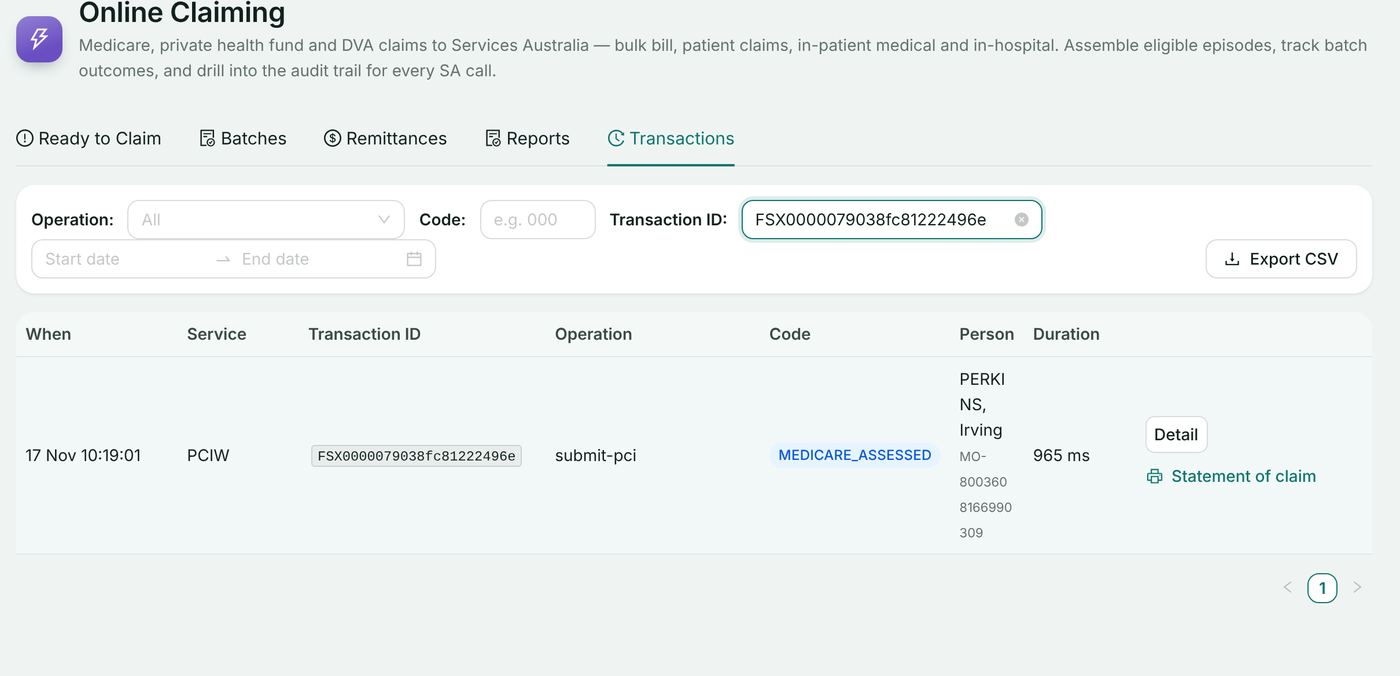
It worked when the check returns an answer with a Transaction ID beginning with your Minor ID. You are ready to claim.
5. How staff sign in to HealthOS
5.1 Signing in
- Open your organisation's HealthOS address.
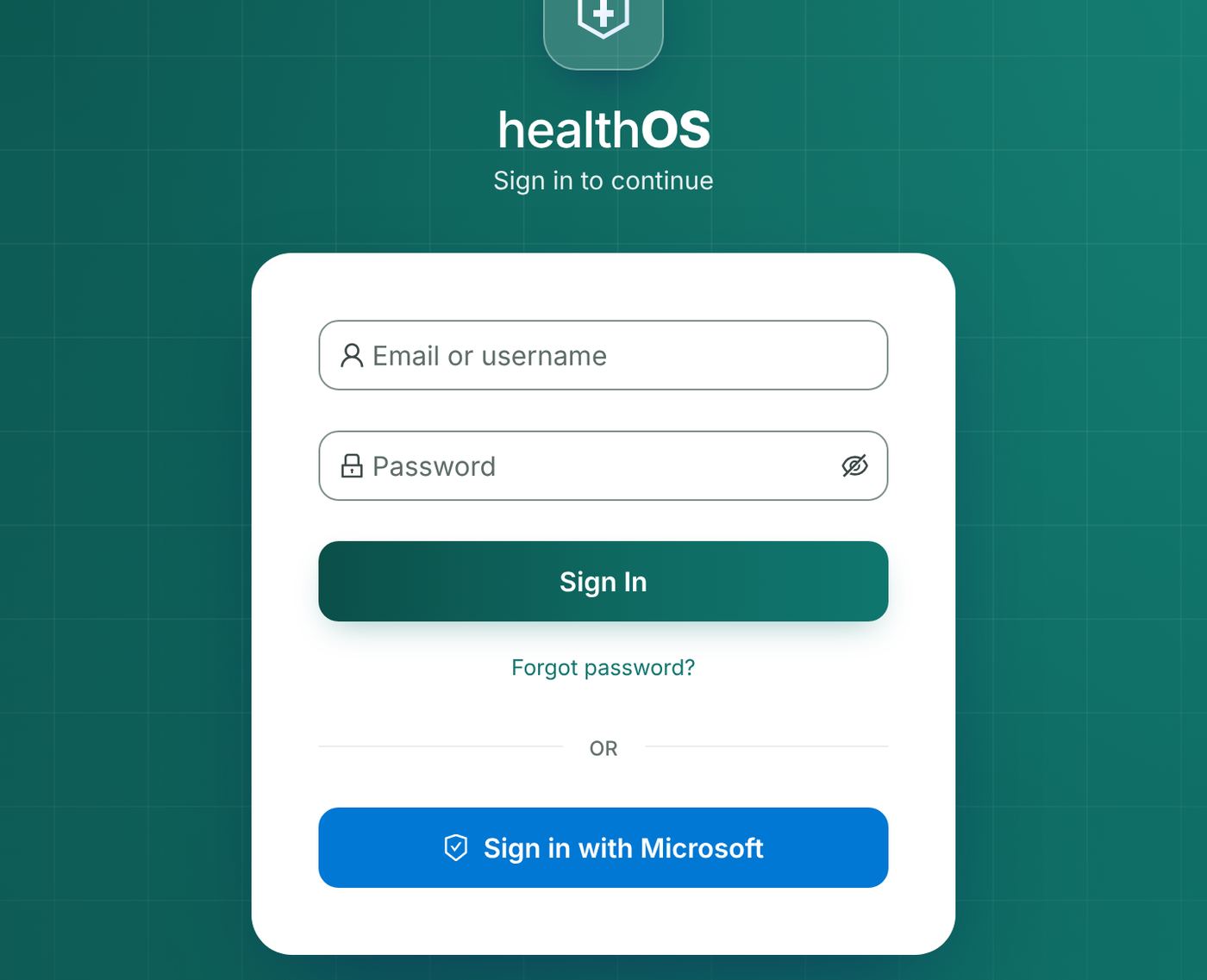
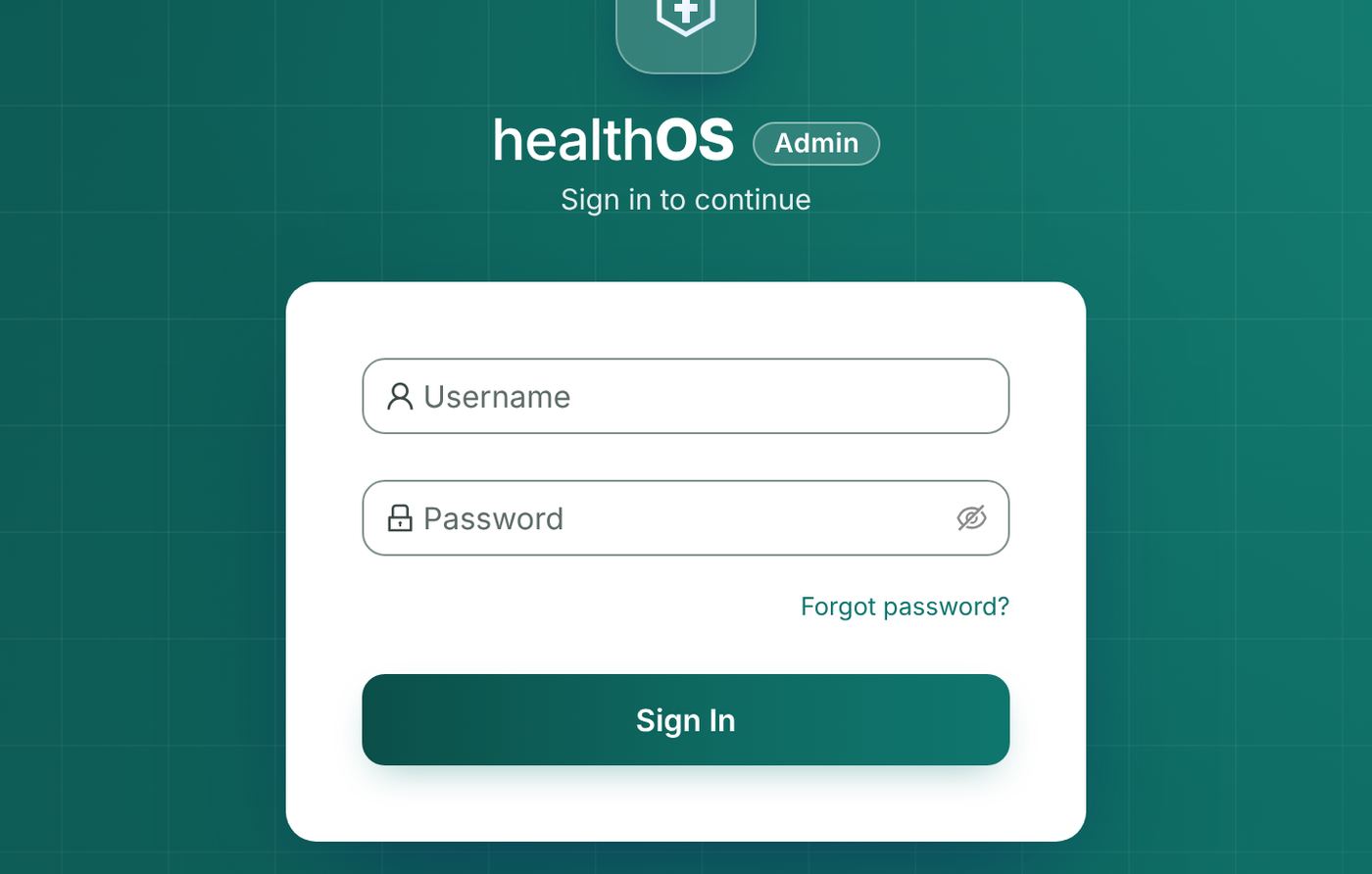
- Enter your Username and Password, or choose your organisation's single sign-on button (for example Microsoft).
- If your organisation requires multi-factor authentication, password sign-in is refused with "Your organisation requires multi-factor authentication. Please sign in with Microsoft single sign-on." (for administrators, "Administrator accounts must sign in with Microsoft single sign-on…"). Use the single sign-on button.
5.2 Sessions and access
- A session belongs to one organisation. Every request is checked against it, and no other organisation's data can be seen.
- An idle session signs out after the inactivity timeout (section 4.3).
- A user's roles decide what they can see and do.
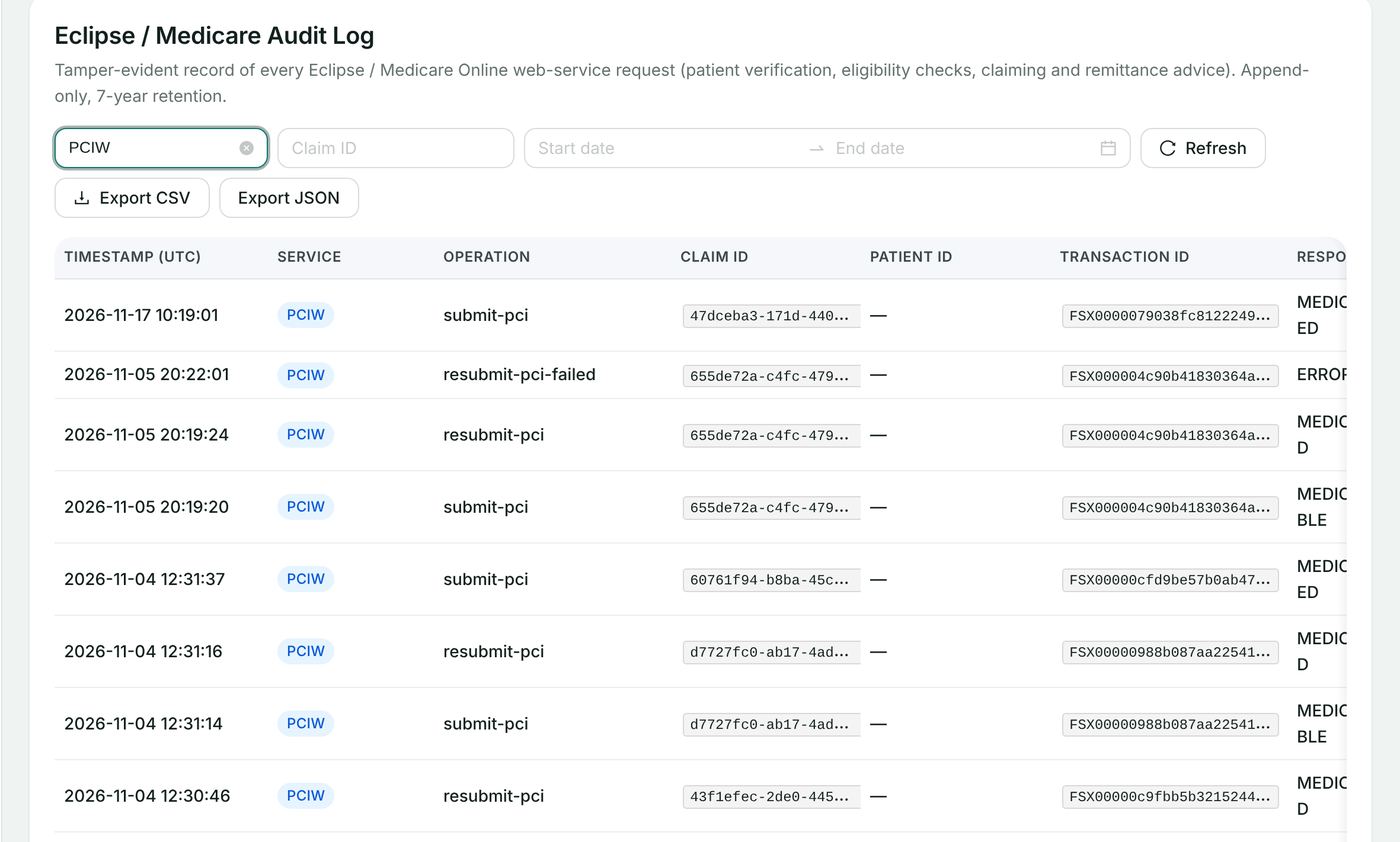
- Every call to Services Australia is recorded with the user, the time and the Transaction ID, and can be reviewed on PAS → Billing & Claims → Online Claiming → Transactions.
- Staff never sign in to PRODA to claim. HealthOS does that on the organisation's behalf (section 6).
6. How HealthOS proves its identity to Services Australia (PRODA)
6.1 How it works
Services Australia check every Medicare Online and ECLIPSE message through PRODA (Provider Digital Access). HealthOS uses PRODA's B2B device method, which works without anyone signing in:
- Your organisation registers a B2B device for HealthOS in PRODA (step 4).
- HealthOS activates it once with the one-time activation code. It creates a key pair (RSA) on its server and registers the public half with PRODA. The private half never leaves HealthOS: it is stored encrypted (AES-256-GCM) in your organisation's settings, and no user can view it.
- For each call, HealthOS signs a request to PRODA with that key (naming your RA number as the sender, and the Medicare Online service, https://medicareaustralia.gov.au/MCOL, as the audience). PRODA returns a short-lived access token, which HealthOS reuses until shortly before it expires.
- HealthOS sends the token with each claim, together with the X-IBM-Client-Id, the product name and your Minor ID, so Services Australia know which software and which location the claim came from.
- HealthOS renews the key automatically before it expires (section 6.3).
For more about PRODA, see PRODA (Provider Digital Access) - Services Australia: https://www.servicesaustralia.gov.au/proda-provider-digital-access
6.2 Checking and changing the settings later
In the admin portal's Government gateways panel, PRODA is listed with its status (Connected once the device is activated), last sync, and the device expiry with the days remaining. Eclipse / Medicare Online is listed beside it. The edit (pencil) action on a row opens its settings:
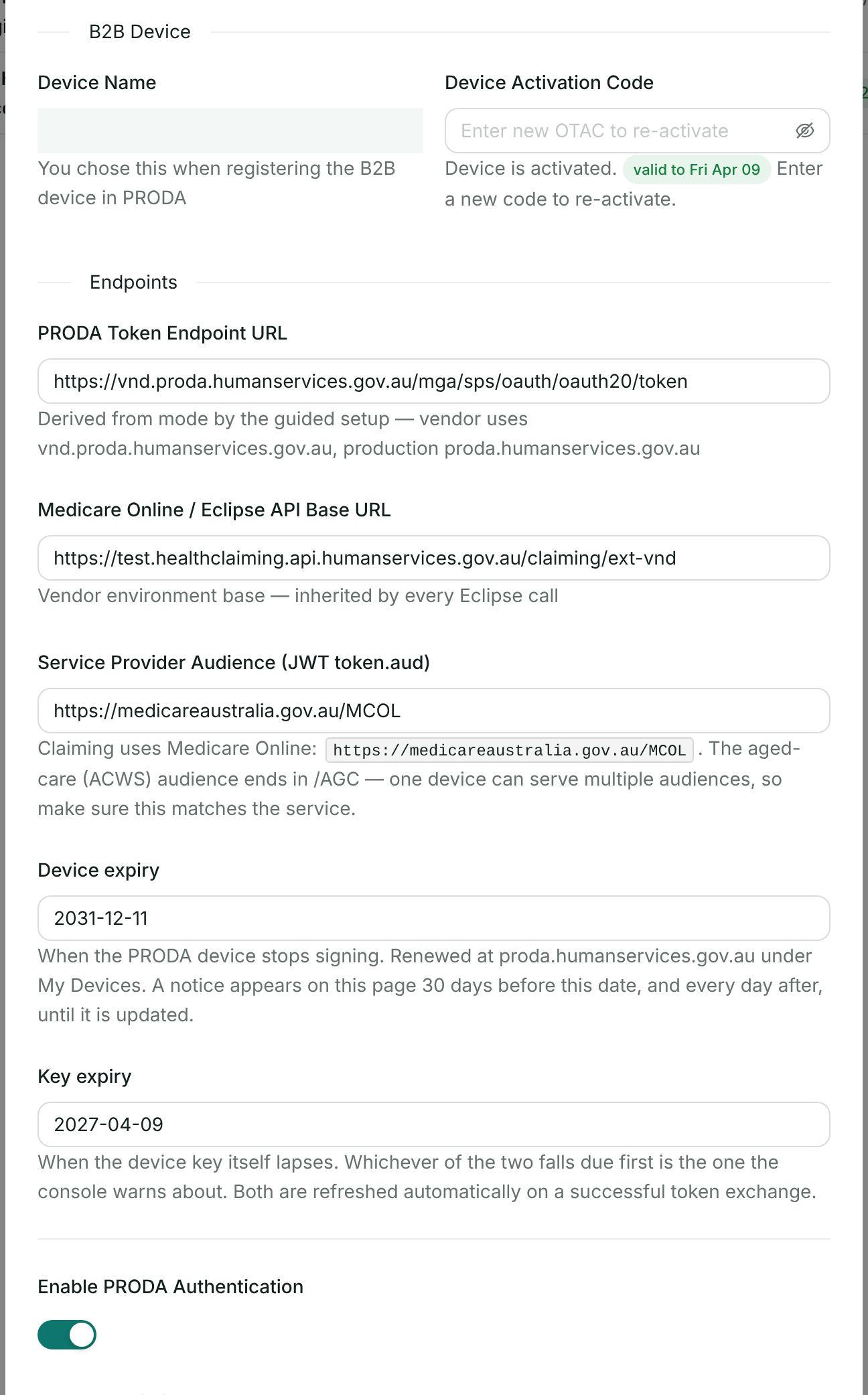
- PRODA opens PRODA B2B Authentication Configuration: the mode, organisation name, RA number, client ID, device name, the addresses the mode sets, Device expiry, Key expiry and Enable PRODA Authentication. Test Authentication gets a token and reports Authentication Test Passed or why not; "Last token" shows when HealthOS last signed in. Activate Device / Re-activate Device take a new activation code. The activation code itself is never shown.
- Eclipse / Medicare Online opens Eclipse / Medicare Online Configuration: the values it shares with PRODA (read-only here, with Edit in PRODA settings), the X-IBM-Client-Id, Minor ID / Location ID, product name and version, and HealthOS's Notice of Integration number and dates. These are HealthOS's own values, set when your organisation was set up: don't change them. The Minor ID is read-only, here and in the PRODA settings' Client ID: only HealthOS can change it, because every Transaction ID starts with it and Services Australia registered your location under it. Test Connection checks the whole path to Services Australia. A notice appears from 90 days before the Notice of Integration expires.
6.3 Keeping the device current
A PRODA B2B device has two expiry dates:
| Date | What happens | Who acts |
|---|---|---|
| Key expiry | In the 7 days before it, HealthOS replaces the key automatically on the next claim: it creates a new key pair and registers it with PRODA, authorised by the current key, then updates both dates from PRODA's answer. If that fails, the current key keeps working until it expires | Nobody |
| Device expiry | The device itself must be renewed in PRODA before this date | Your PRODA member renews it in PRODA; your administrator then saves the new Device expiry in the PRODA settings |
Reminders. From 30 days before the earlier of the two dates, the Government gateways panel shows "PRODA device expires in N days — renew the Device in PRODA", with the device name and date. In the last 7 days it becomes a red alert; after the date it reads "PRODA device has EXPIRED — re-activate the device in PRODA". It cannot be dismissed, and appears every time the panel opens until the device is renewed or the key replaced.
If the date has passed, claiming stops with an authentication error, because an expired key cannot authorise a new one. Generate a new activation code in PRODA (section 4.4) and re-activate the device. Either enter the code in the Guided Setup's Device activation code ("Enter a new activation code to re-activate the device"), or enter it in the PRODA settings' Device Activation Code and choose Re-activate Device.
6.4 Replacing or withdrawing the device
- To move to a new device (for example after a change of PRODA administrator), register a new device in PRODA and activate it in HealthOS with its name and activation code. The new key replaces the old one.
- To stop HealthOS claiming for your organisation, switch off Enable PRODA Authentication in the PRODA settings, and deactivate the device in PRODA.
7. Troubleshooting
| Message or symptom | Likely cause | What to do |
|---|---|---|
| Activate PRODA B2B device — Activation failed | The activation code has expired, was already used or was mistyped; or the RA number or device name differs from PRODA | Check the RA number and device name against PRODA. Generate a new code (section 4.4) and apply again |
| Test connection (PRODA token + ping) fails | Device not activated; wrong mode; RA number or device name not as registered in PRODA | Check the PRODA step's values on the Review & apply step. If it still fails, email HealthOS support with the message |
| Vendor mode required on every claiming card | PRODA is switched off, or the mode is Mock | Turn on Enable PRODA Authentication and set the mode to Production (section 4.5) |
| PRODA device expires in N days | The device or key expires within 30 days | Renew the device in PRODA and save the new date (section 6.3) |
| PRODA device has EXPIRED, or authentication errors on every claim | The key or device has expired | Re-activate with a new activation code (section 6.3) |
| Transaction IDs do not start with your Minor ID | The Minor ID set for your organisation is wrong | Email HealthOS support |
| DVA in-hospital claims refused with 7013 | The DVA Facility ID is not linked to your location | Email HealthOS support with the Transaction ID |
| Password sign-in refused: multi-factor authentication required | Your organisation requires MFA for this account | Use the single sign-on button |
| Signed out unexpectedly | The inactivity timeout was reached | Sign in again. An administrator can change the timeout (section 4.3) |
| Claim documents do not open | The browser blocked the pop-up | Allow pop-ups for your HealthOS address |
Every Medicare Online and ECLIPSE request is also kept in a tamper-evident audit, which HealthOS support can use to trace a problem:
Appendix A. Configuration record
Keep a record of your organisation's setup. Never write down the activation code: it works once and is not needed again.
| Setting | Value |
|---|---|
| HealthOS staff portal address | |
| Mode | |
| Organisation name | |
| PRODA RA number | |
| B2B device name | |
| Minor ID / Location ID (from HealthOS) | |
| Device expiry date | |
| Date activated, and by whom | |
| PRODA member responsible for renewal |
Still stuck? Email support@healthos.net.au