Send FHIR Bundles through the ESB
By the end, your integration engine posts a signed transaction Bundle of AllergyIntolerance resources, gets a transaction-response back, and the allergies appear on the resident’s record in HealthOS. Allow about an hour. The provider’s HealthOS administrator does most of the set-up in HealthOS Admin. You write one small script.
You will need
- An integration engine, or any system that can send an HTTPS POST and compute an HMAC-SHA256. Our script uses Node.js 18 or later and nothing else.
- A sample of the Bundle your engine produces, so the provider can map it.
- The identifier your Bundles carry for the person (here an MRN), and a test person the provider already holds with that identifier.
- An hour of the provider’s HealthOS administrator’s time.
Before you start
A Bundle you send to the ESB doesn’t write straight into the record. Each entry runs through a channel the provider configures: a mapping turns your resource into HealthOS fields, the person is matched on your identifier, and the result is staged. A promotion step then writes it to the record, on a schedule the provider sets. That gives the provider a place to see, check and hold back what you send.
Plan one channel per resource type. A channel promotes into one kind of record, so allergies, conditions and observations each get their own. If one Bundle has to carry several types, the provider can route them with a rule step, but the simplest start is one type.
Everything here was run against a local HealthOS with demo data, for a demo resident, Margaret Chen (MRN CHL-DEMO-002). The provider’s HealthOS is shown as https://healthos.example.org, and tokens and secrets are replaced with placeholders.
Set it up
-
Install a FHIR connection for your engine
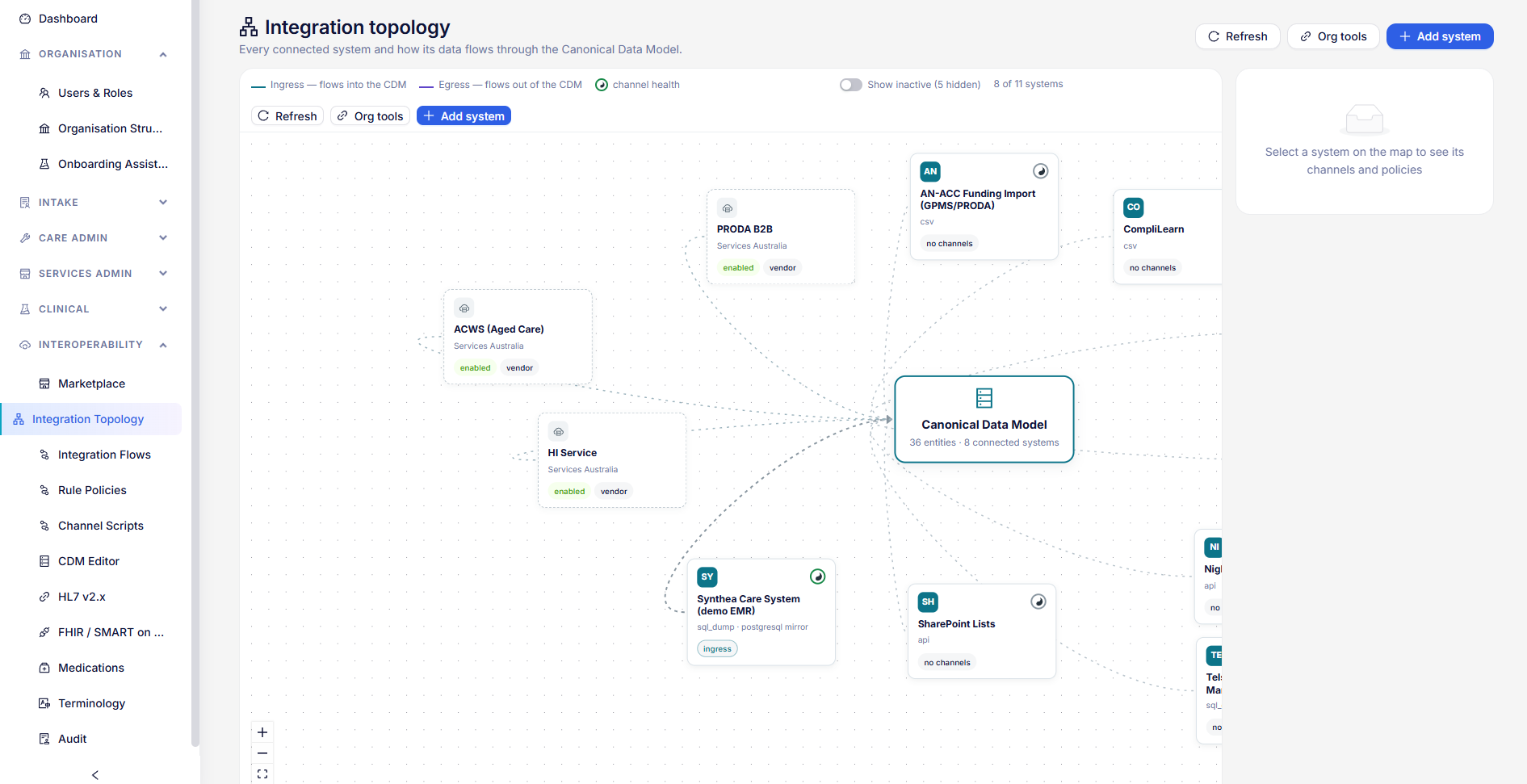
Provider administratorThe channel needs a connection to belong to. In HealthOS Admin, go to Interoperability → Marketplace, search for
FHIRand click Install on FHIR R4 endpoint.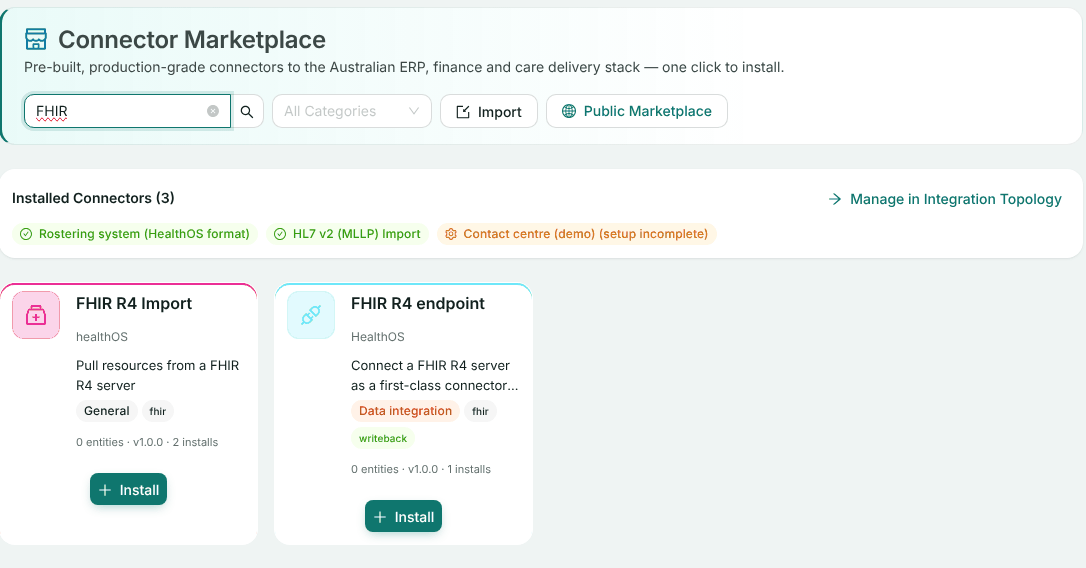
Use FHIR R4 endpoint. It can be both a source and a destination of a channel. In the set-up form, enter your engine’s FHIR base URL, set Authentication to None and Resource types to
AllergyIntolerance. HealthOS calls the base URL only if the provider later has it read from your server as well, so for a push-only feed nothing is sent to it. Click Next, then Complete Setup.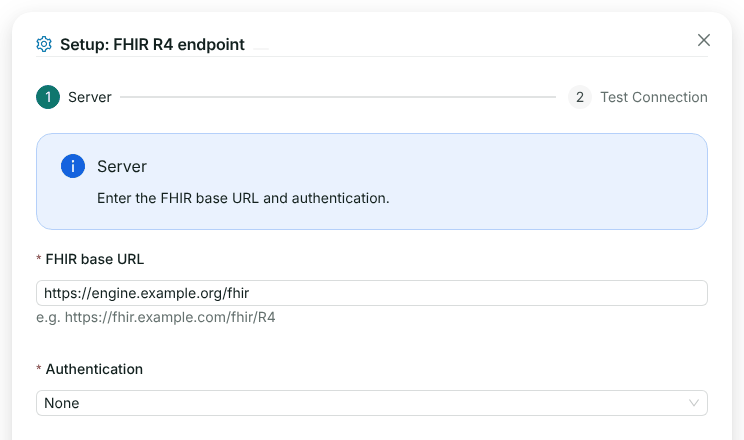
The top of the set-up form. The other fields are for a server HealthOS reads from, which Pull from your FHIR server covers. -
Create the ingress channel
Provider administratorGo to Interoperability → Integration Topology and open the new connection. Click Edit configuration, which opens a draft: nothing you change goes live until you publish it. On the Ingress lane, click Enable channel, enter
AllergyIntoleranceas the source object and click Create channel (disabled).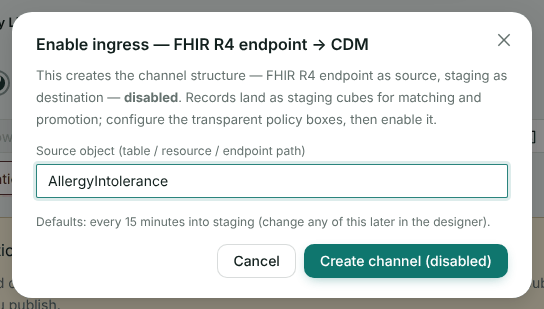
This makes a channel that stages what arrives for matching and promotion. It starts disabled. You turn it into a webhook in step 6. -
Map the resource
Provider administratorThe channel needs two mapping templates on the connection. The first flattens each AllergyIntolerance into HealthOS fields, and runs as a step in the channel. The second, marked as the default and set to the
allergyentity, is what staging and promotion use. It maps those fields one to one and matches the person onmrn.From your resource To patient.identifier.valuemrn(matches the person, and is a match-on field)code.coding.0.codecode_value(also a match-on field)code.coding.0.system,code.coding.0.displaycode_system,code_displayclinicalStatus.coding.0.code,verificationStatus.coding.0.codeclinical_status,verification_statustype,category.0,criticalitytype,category,criticalityreaction.0.manifestation.0.coding.0.display,reaction.0.severityreaction_manifestation,reaction_severityrecordedDaterecorded_dateMarking
mrnandcode_valueas match-on fields means a second delivery of the same allergy for the same person updates it instead of adding a duplicate.Today the connection’s mapping editor offers person fields only, so we added these two templates through the integrations API (
POST /api/v1/integrations/mappings) while the draft was open. Once published, the ingress Mapping block shows them: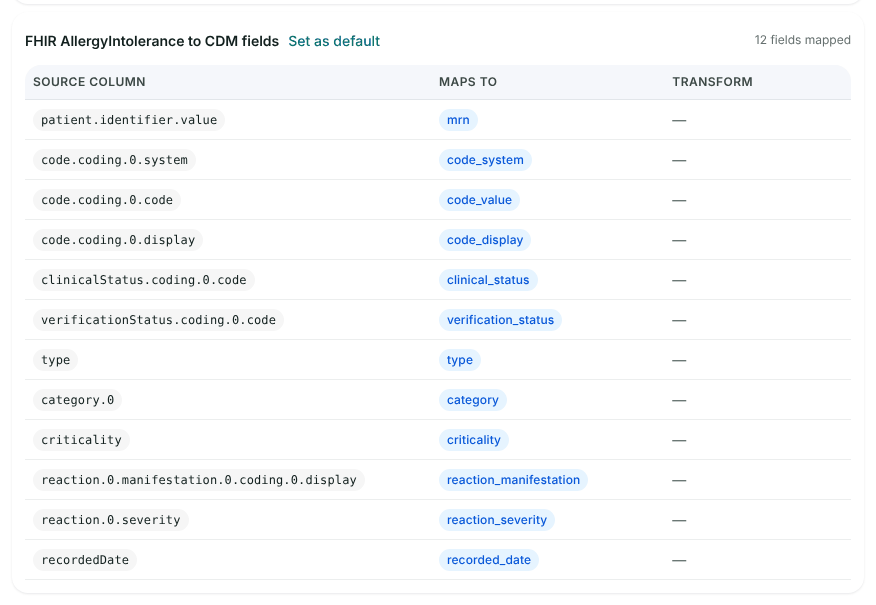
The flattening template. Source columns are dotted paths into your resource. -
Turn on promotion
Provider administratorClick the No match → create block on the ingress lane. On the Allergies template, switch Auto-promote on and enter a schedule such as
*/15 * * * *. Leave Only matched on, so a record that doesn’t match a person waits in staging rather than being promoted.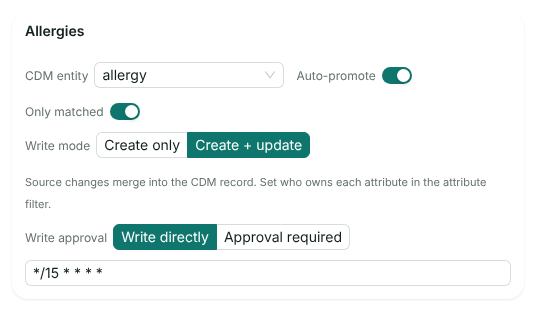
After publishing. While the draft is open this panel still shows the live values, so don’t be surprised when a switch seems to spring back. -
Publish the configuration
Provider administratorClick Review & publish in the draft banner, check the list of changes and click Publish. Publishing records a version the provider can roll back to.
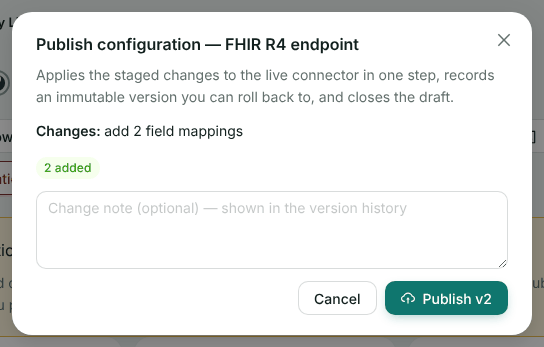
Publishing the two templates. Changing the promotion settings is a second, smaller draft. -
Make the channel a FHIR webhook
Provider administratorGo to Interoperability → Integration Flows and click the edit icon on the channel. In Channel settings, give it a name, set Trigger to Webhook and switch Enabled on. Click + Transform, leave it on Field mapping and enter the flattening template’s ID. Paste a sample Bundle into Fields from a sample payload and click Derive fields to check the paths you mapped exist. Then click Save changes.
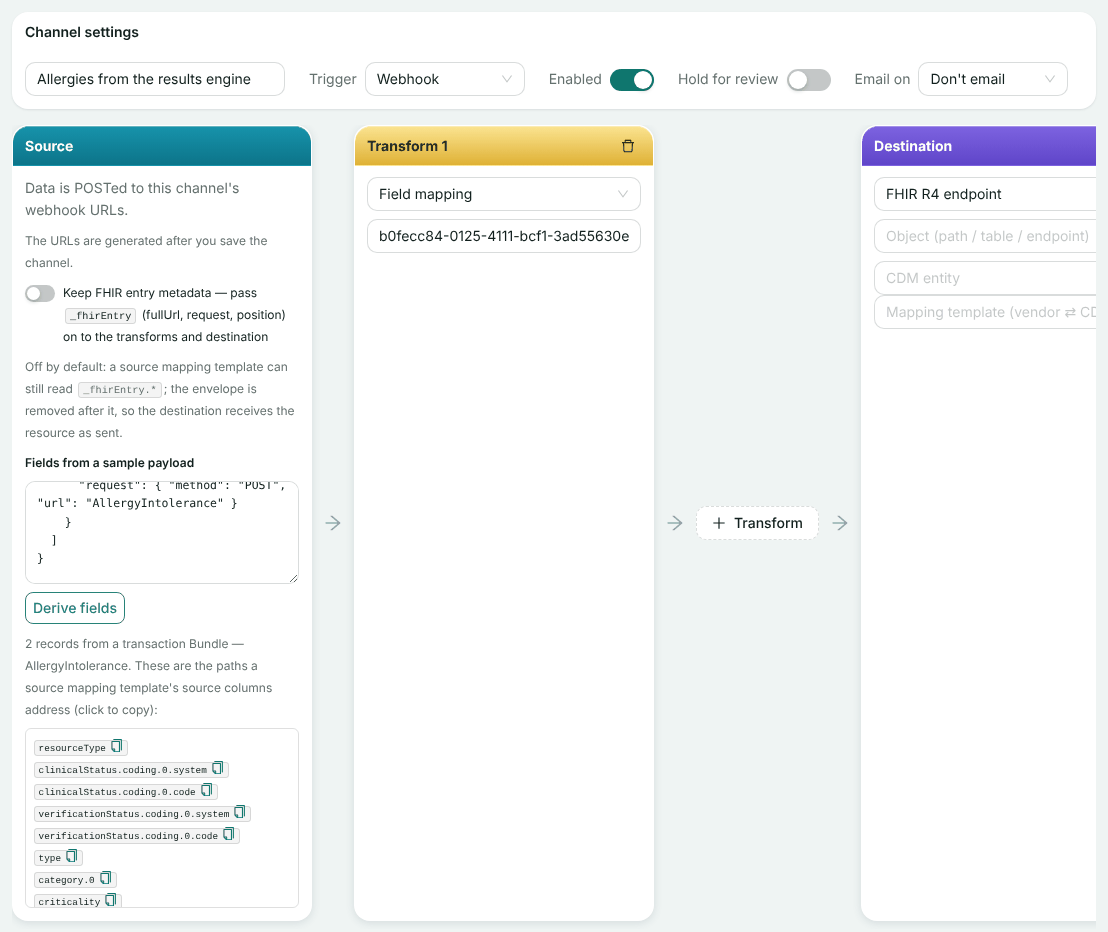
The transform step takes the template’s ID, not its name. The destination block names the connection: its records are staged there for promotion. -
Send the URL and the secret to the vendor
Provider administratorOpen the channel again. The source block now shows two URLs and the signing secret (click the eye to reveal it). Send the vendor the FHIR transaction endpoint, which ends in
/fhir, and the secret, over a channel you both trust.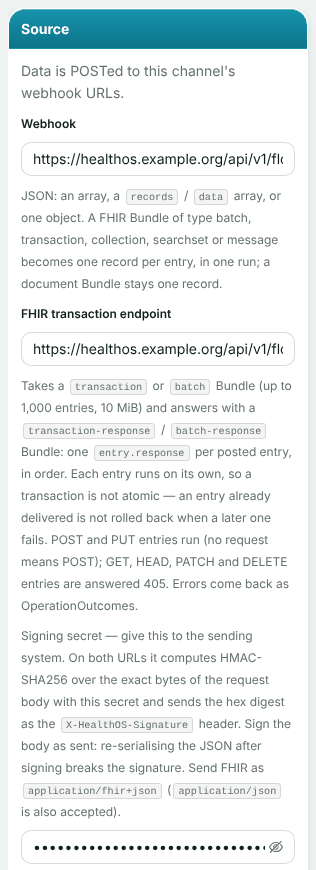
The token in each URL identifies this channel and so this organisation. We have replaced the host and hidden the secret.
Send a Bundle
-
Build a transaction Bundle
YouEach entry carries one resource and a POST request. The person is identified by the MRN in
patient.identifier:{ "resourceType": "Bundle", "type": "transaction", "entry": [ { "fullUrl": "urn:uuid:4f6c2a10-8d1e-4b7a-9c55-0e2f1d3a7b01", "resource": { "resourceType": "AllergyIntolerance", "clinicalStatus": { "coding": [{ "system": "http://terminology.hl7.org/CodeSystem/allergyintolerance-clinical", "code": "active" }] }, "verificationStatus": { "coding": [{ "system": "http://terminology.hl7.org/CodeSystem/allergyintolerance-verification", "code": "confirmed" }] }, "type": "allergy", "category": ["medication"], "criticality": "high", "code": { "coding": [{ "system": "http://snomed.info/sct", "code": "764146007", "display": "Penicillin" }] }, "patient": { "identifier": { "system": "http://ns.electronichealth.net.au/id/hospital/mrn", "value": "CHL-DEMO-002" } }, "recordedDate": "2026-10-17T09:30:00+10:00", "reaction": [{ "manifestation": [{ "coding": [{ "system": "http://snomed.info/sct", "code": "271807003", "display": "Rash" }] }], "severity": "moderate" }] }, "request": { "method": "POST", "url": "AllergyIntolerance" } }, { "fullUrl": "urn:uuid:4f6c2a10-8d1e-4b7a-9c55-0e2f1d3a7b02", "resource": { "resourceType": "AllergyIntolerance", … "Latex" … }, "request": { "method": "POST", "url": "AllergyIntolerance" } } ] } -
Sign it and post it
YouThe signature is a hex HMAC-SHA256, keyed with the secret, over the timestamp, a full stop and the exact bytes of the body. Sign what you send: if your engine re-serialises the JSON after signing, the signature won’t match.
// sign-and-send.mjs: sign a body with the channel's secret and POST it.
//   node sign-and-send.mjs <url> <secret> <file> [content-type] [idempotency-key]
import { createHmac } from 'node:crypto';
import { readFileSync } from 'node:fs';

const [url, secret, file, contentType = 'application/json', idempotencyKey] = process.argv.slice(2);
const body = readFileSync(file, 'utf8');
const timestamp = Math.floor(Date.now() / 1000).toString();
const signature = createHmac('sha256', secret).update(`${timestamp}.${body}`).digest('hex');

const headers = {
  'Content-Type': contentType,
  'X-HealthOS-Timestamp': timestamp,
  'X-HealthOS-Signature': signature,
};
if (idempotencyKey) headers['Idempotency-Key'] = idempotencyKey;

const res = await fetch(url, { method: 'POST', headers, body });
console.log(res.status, res.statusText);
console.log(await res.text());
node sign-and-send.mjs \ https://healthos.example.org/api/v1/flow-webhooks/{token}/fhir \ "$SIGNING_SECRET" bundle.json application/fhir+jsonThe same request with curl and openssl, if that suits your engine better:
ts=$(date +%s)
sig=$( { printf '%s.' "$ts"; cat bundle.json; } | openssl dgst -sha256 -hmac "$SIGNING_SECRET" -hex | sed 's/^.* //')
curl -X POST "https://healthos.example.org/api/v1/flow-webhooks/{token}/fhir" \
  -H 'Content-Type: application/fhir+json' \
  -H "X-HealthOS-Timestamp: $ts" -H "X-HealthOS-Signature: $sig" \
  --data-binary @bundle.json
What came back for us, one response per entry in the order you sent them:
HTTP/1.1 200 OK
Content-Type: application/fhir+json; charset=utf-8

{
  "resourceType": "Bundle",
  "type": "transaction-response",
  "timestamp": "2026-10-18T02:05:01.682Z",
  "entry": [
    { "response": { "status": "200 OK" } },
    { "response": { "status": "200 OK" } }
  ]
}
Each entry runs as its own unit of the channel, so a transaction here is not all-or-nothing: an entry already delivered stays delivered if a later one fails, and its own
response.statustells you which. Up to 1,000 entries and 10 MiB go in one Bundle. -
Watch the run
Provider administratorOn Integration Flows, the channel shows its last run. Click History and expand the run to see each entry as its own source,
fhir-entry-0000onwards.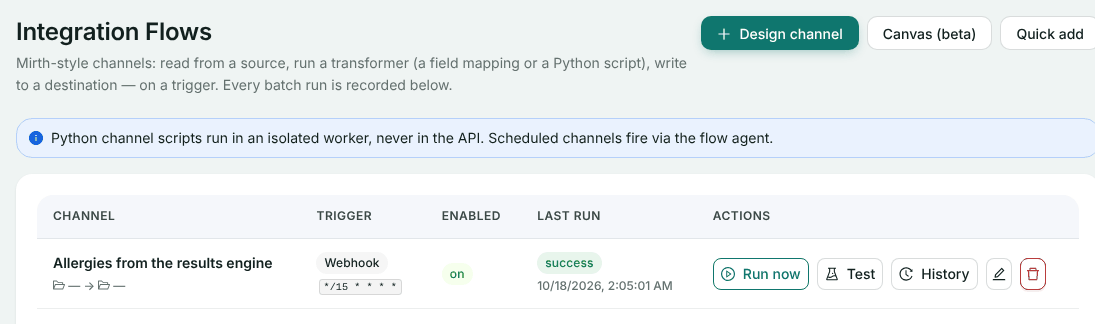
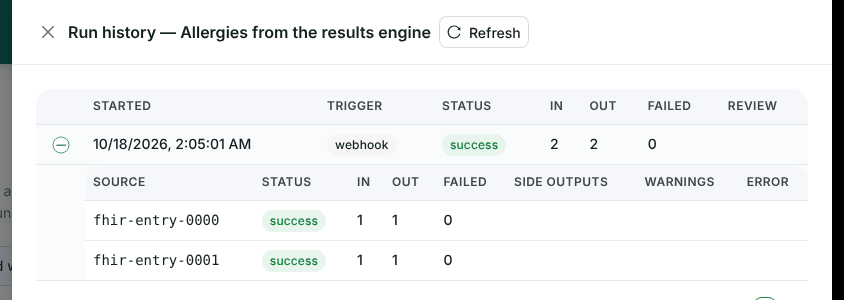
One run, two units. A failed entry shows its error here. On the connection’s overview, Staged data lists what each entry staged and whether the person matched. After the next promotion run it shows what each was promoted into.
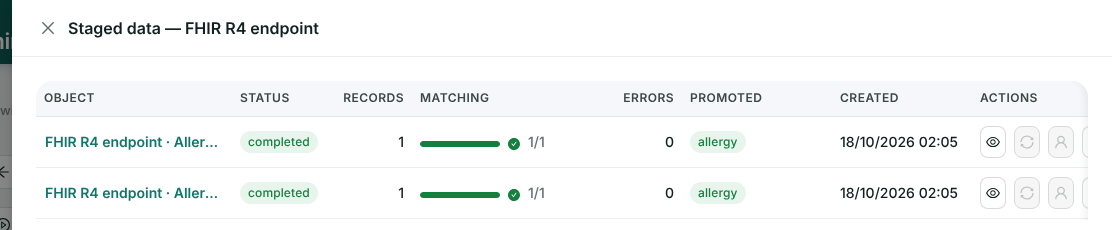
Matching 1/1 means the MRN found the person. Promoted: allergy means it is on the record.
Check it worked
- The response is a
transaction-responsewith200 OKfor every entry. - The run in History shows as many sources as you sent entries, all success.
- Staged data shows each record matched. After the promotion schedule has run, it shows allergy under Promoted.
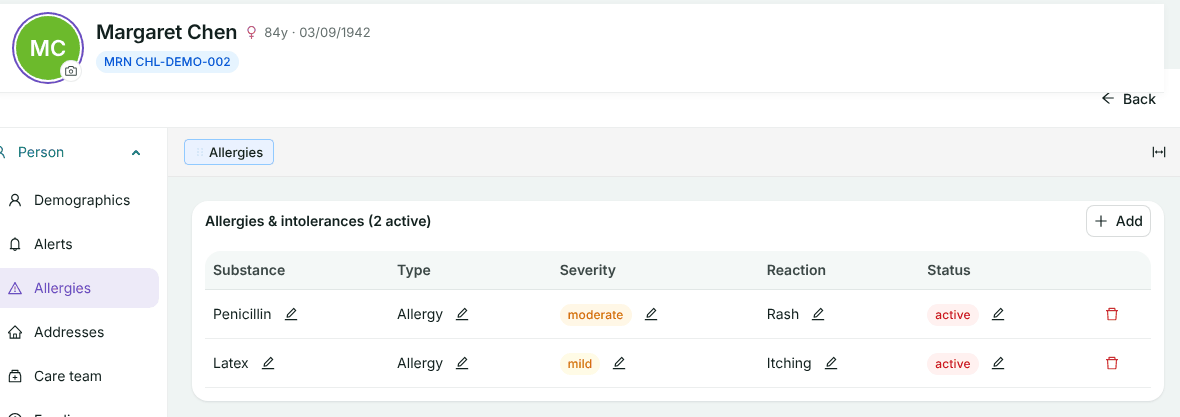
- In HealthOS, open the resident and go to Person → Allergies:
If something goes wrong
These are the answers we saw, or that the channel is written to give.
| What you see | Why | What to do |
|---|---|---|
401 OperationOutcome, code security, “Invalid signature”, or a message about the timestamp window | The signature doesn’t match the body, the secret is wrong, or the timestamp is more than five minutes old or a minute ahead | Sign the exact bytes you send, with the timestamp you send. Check your clock |
404 OperationOutcome, code not-found, “Unknown webhook” | The token in the URL is wrong, or was rotated more than 24 hours ago | Ask the provider for the current URL |
400 OperationOutcome, code invalid | The body isn’t a transaction or batch Bundle, or isn’t valid JSON | Send other Bundle types to the plain URL, without /fhir |
An entry answered 405 | Its request method is GET, HEAD, PATCH or DELETE. Only POST and PUT run | Send only creates and updates through the channel |
An entry answered 422 or 500 | A step in the channel refused it, or it failed | The provider sees the reason in History |
| Staged, Matching 0/1, never promoted | No person in the organisation has that MRN | Check the identifier. The provider can link the record from the match queue |
| Matched but not promoted | Auto-promote is off, it has no schedule, or the change is still in an unpublished draft | Turn it on with a schedule and publish |
The FHIR endpoint does not use Idempotency-Key today: a retried Bundle runs again. With mrn and code_value as match-on fields, a retry updates the same allergy instead of adding a second one.
Related
Send us a sample Bundle
We’ll map it with the provider against a test organisation, so the first live Bundle lands where it should.